


Digital Security
Built-in security you can count on.
OakStar digital banking is designed with thoughtful, behind-the-scenes protection to help keep your information safe without slowing you down.


OakStar digital banking is designed with thoughtful, behind-the-scenes protection to help keep your information safe without slowing you down.
Added log-in protection and advanced sign-in options help ensure only you can access your accounts and personal information.
Transaction monitoring and timely alerts keep you informed, so you can quickly address anything that looks unusual.
Turn your card on or off instantly, report a lost or stolen card, and customize your alerts in your digital banking environment.
OakStar Defense provides more support through credit, identity, and subscription monitoring to help you stay ahead of potential issues.
OakStar Defense allows you to monitor your credit, help safeguard your identity, track personal information exposure, and manage subscriptions—all from your digital banking dashboard. Upgrade to Premium* for enhanced monitoring, alerts, and support.


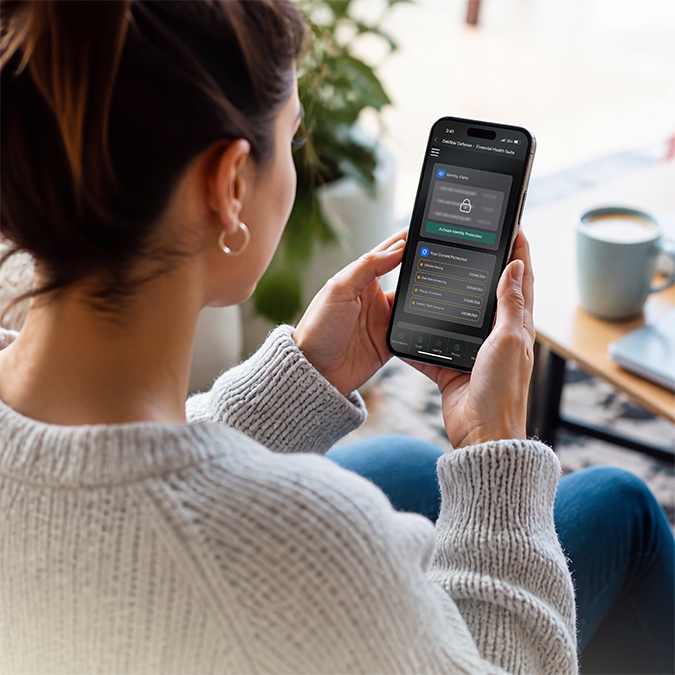
OakStar Defense is available today for customers with an OakStar deposit account and personal digital banking profile.
Simply log in and scroll to the OakStar Defense tile in your dashboard to access features, tools, and support.
*OakStar Bank customers can access the free version of OakStar Defense in their online banking dashboard or upgrade to a premium, paid subscription for even more protection. OakStar Defense is not available on corporate/cash management digital IDs. Users must have a digital banking ID that uses a personal tax ID number.
Make the switch to eStatements for secure, paperless access to your account information whenever you need it. View your statement history anytime, reduce paper clutter, and help protect your personal information by reducing the risks associated with lost, stolen, or delayed mail.
quick answers
Call 417.447.0535 or message us through your digital banking dashboard for 24/7 support* from an OakStar team member.
*Closed according to holiday closures.

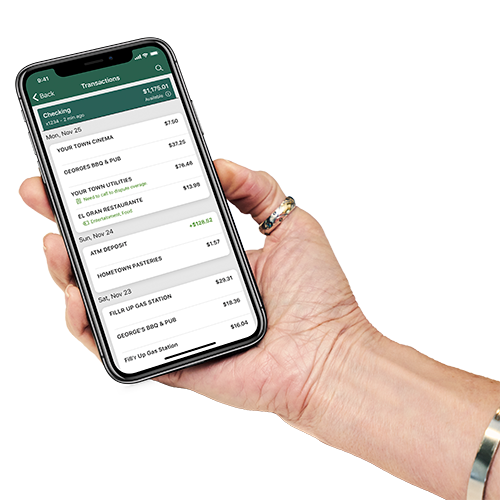
Digital banking brings many of the services of your local branch into one convenient experience you can access from your desktop, phone, or tablet.
You can manage accounts, move money, deposit checks, pay bills, and take care of everyday tasks—on your schedule, from wherever you are.
Online banking allows you to access your accounts through a desktop computer, while mobile banking provides access through the OakStar Bank Mobile app on your phone or tablet.
While there are some small differences between the two, both are part of your digital banking experience and offer secure, consistent access to your accounts.
Most login or access issues can be resolved quickly with a few simple steps.
Try these first:
Make sure your OakStar app is up to date. Only the most recent versions are supported.
Remove your profile and log in again. This clears stored login data on your device and resolves the majority of access issues. To remove your profile:
Press and hold the user profile icon in the top-right corner of the app.
When the Select profile window appears, choose the profile you want to remove.
Select Remove.
When you log back in, you'll need your username, password, and 2FA code.
If you're locked out: Update your app first, then remove your profile before resetting your password.
Select Login on the OakStar Bank home page, then choose Enroll.
Enter your SSN, account number, email, and phone number on the New user enrollment screen, then select Next. (All information must exactly match your account details.)
On the Confirm email screen, enter the verification code sent to your email and select Verify. If the code has expired or doesn't appear, select Resend Code.
Set up 2-step verification:
Select Get started when prompted.
Choose how you want to receive or generate codes:
Voice or text message: Codes are sent to your phone.
Authenticator app: Use any supported authenticator app via QR code or manual entry.
FIDO security key: A physical token that provides a simple, password-free sign-in option.
Passkey: A one-step authentication method stored securely on your device using face or fingerprint recognition.
Follow the instructions for the selected two-step verification method, then select Done.
Review the user agreement and select Agree.
Create your username and password, then select Next. You can view requirements by selecting Show rules for each field.
Once enrollment is complete, allow a few minutes for your accounts to sync. You'll automatically see accounts where you're listed as an owner.
To request access to additional accounts—such as those where you're an authorized signer or trustee—or for additional assistance enrolling your accounts, please contact us.
Passkeys are a simple, one-step way to sign in using secure credentials already stored on your device—combining convenience with built-in protection.
Two-factor authentication (2FA) adds a one-time confirmation at sign-in, providing added confidence that only you can access your account.
FIDO security keys are a password-free sign-in option that uses a physical key for added peace of mind. With nothing to remember or share, this method offers a strong, streamlined approach to account protection.
Log into online banking.
Select an account and choose Settings.
Choose Statements.
Choose Sign Up/Changes.
Select the accounts you want to enroll or Enroll All Available Accounts.
Click Save Settings.